How Do You Budget for Christmas in a Spreadsheet?
Pick one total for the whole season. Split it into categories like gifts, food, hosting and travel. Then give each person on your list a gift budget. Log every gift and purchase as you go, and let the sheet subtract it from what is left. You always know your number before you reach the till.
Most holiday overspending is not one big purchase. It is forty small ones, spread over six weeks and three cards. A spreadsheet puts them in one place, so the total is never a surprise in January.
From our planner shop, Layer7 Planners
Christmas Gift Tracker & Holiday Budget Planner
Step 1: Set One Total for the Whole Season
Start with the number you can afford, not the number you spent last year. Look at what you can set aside from now until Christmas without touching bills or savings. That is your total.
Put it in one cell at the top of the sheet. Every other number in the file should be measured against it. If the total changes, change it there and nowhere else.
Step 2: Split It Into Categories
Gifts are usually only part of the cost. The rest hides in groceries, wrapping paper and stamps. Give each of these its own line so it has its own limit.
| Category | What goes in it |
|---|---|
| Gifts | Everything you buy for people on your list |
| Food and groceries | The big dinners, baking and treats |
| Hosting | Drinks, party supplies, extra chairs |
| Decorations | Tree, lights, new ornaments |
| Travel | Gas, flights, trains, a hotel night |
| Cards and postage | Cards, photo cards, stamps |
| Wrapping and shipping | Paper, tape, gift bags, courier costs |
| Charity | Donations and giving trees |
| Other | Anything that fits nowhere else |
Add up the category budgets and compare them to your total. If they come to more, cut a category now. It is much easier to trim a line in November than a gift in December.
Step 3: Give Each Person a Gift Budget
List everyone you buy for, one row each. Put them in groups such as family, kids, friends, work and neighbours. Then give each person a number.
The person budgets should add up to no more than your Gifts category. If they come to more, the sheet has just told you something useful, before you have spent a cent.
Add a column for likes, sizes and wish-list ideas. When you are standing in a store, “size M, loves green” saves a lot of guessing.
Step 4: Track Every Gift From Idea to Wrapped
Keep a gift list with one row per gift: who it is for, what it is, the price, and a status. A simple status list does most of the work:
- Idea: you might buy it. It counts toward the plan but not toward money spent.
- Ordered: the money is gone, even if the parcel is not here yet.
- Bought and Arrived: it is in your hands.
- Wrapped and Given: done.
The key rule: ideas never count as spent. Only count a gift once it is ordered. Then change the price to what you really paid. That one habit keeps your “left to spend” number honest.
With a person column on each gift, a SUMIF can total spending per person. In Google Sheets, =SUMIF(Gifts!A:A, "Mom", Gifts!C:C) adds up every gift price for Mom. Subtract it from her budget and you can see at a glance who is over.
Step 5: Log Everything Else in the Same File
Groceries, decorations and stamps go on a second list with a date, an amount and a category. Use a dropdown for the category so the spelling always matches your budget lines. A typo like “Decoration” instead of “Decorations” quietly drops a purchase out of your totals.
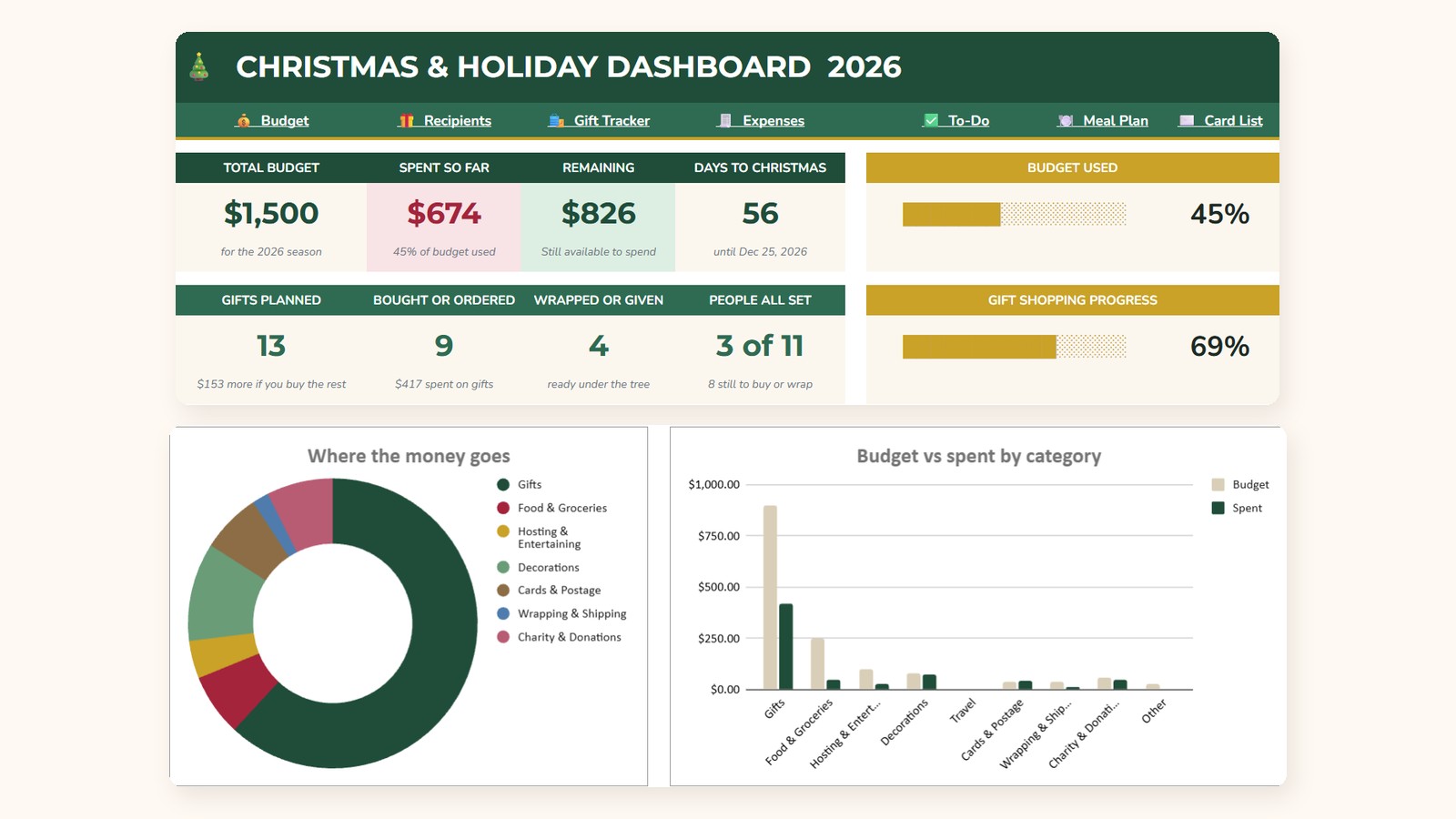
Your budget tab then adds up each category with a SUMIF and shows budget, spent and remaining side by side. Make any negative remaining number turn red. You will notice it straight away.
Step 6: Add a Simple Countdown
Money is only half of Christmas stress. The other half is timing. A short task list with “do by” dates keeps both in view: book travel, order photo cards, shop the sales, post cards to far-away family.
Black Friday moves every year. It is the day after the fourth Thursday of November. A formula can work it out from the year, so the list still works next Christmas.
Build It or Use a Template
Everything above can be built in an evening if you are happy with SUMIF and dropdowns. For a short list, a simple version may be all you need.
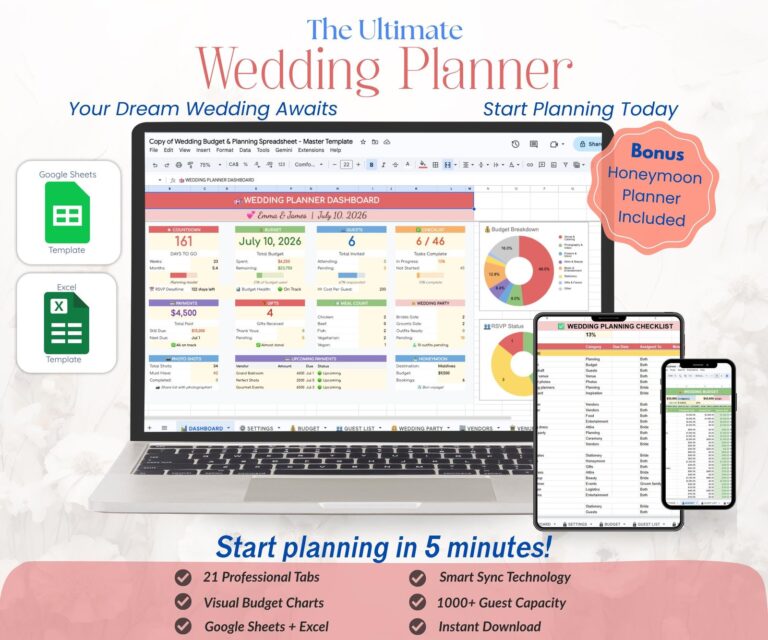
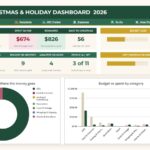
It takes longer once you want a dashboard, progress bars, charts, per-person status and a countdown that updates itself each year. That is the planner we made for our sister shop, Layer7 Planners. It comes with sample data, so you can see how it all connects before you type your own list.
Google Sheets template
Christmas Gift Tracker & Holiday Budget Planner
Keep Reading
- How to Host a Cookie Exchange
- When Grandparents Ignore the Gift List
- Letters From Santa: A DIY Guide
Frequently Asked Questions
How much should I budget for Christmas?
Start from what you can afford, not from what others spend. Add up what you can set aside between now and the holidays without touching bills or savings. Use that as your total, then split it across your categories.
Should gift ideas count toward my spending?
No. Count ideas in your plan, but only count a gift as spent once it is ordered. Otherwise your “spent” number looks higher than it really is, and you may cut gifts you could afford.
What should a Christmas gift tracker include?
Who the gift is for, the gift, the price, a status such as idea, ordered, bought or wrapped, and where to buy it. A date bought and a notes column help when parcels go missing.
Can I reuse my Christmas budget spreadsheet next year?
Yes. Make a copy so this year’s list stays as a record, then clear the amounts and gifts in the copy. Keeping last year’s list also stops you buying someone the same gift twice.
Google Sheets or Excel for a holiday budget?
Google Sheets is handy if two people shop for the same family, because you can both edit the same file. Excel works too. The SUMIF formulas above work the same way in both.

- Christmas Budget Spreadsheet: 6 Steps to Plan Gifts and Spending - November 5, 2026
- How to Host a Cookie Decorating Party for Kids (Christmas or Birthday) - October 30, 2026
- How to Host a Cookie Exchange: Simple Rules, a Timeline and Invitation Wording - October 30, 2026