How Do You Build a Wedding Guest List and Seating Chart in One Spreadsheet?
Keep one master guest list, give every guest a table number in a column, and let the seating chart read from that column rather than being typed separately. Then moving someone between tables is one edit, not three, and your headcount, meal totals and place cards can never disagree with each other.
The trouble starts when the guest list lives in one place and the seating plan in another. Two lists describing the same forty people have to be updated twice, and the second update is the one that gets missed.
Guest list and seating in one file
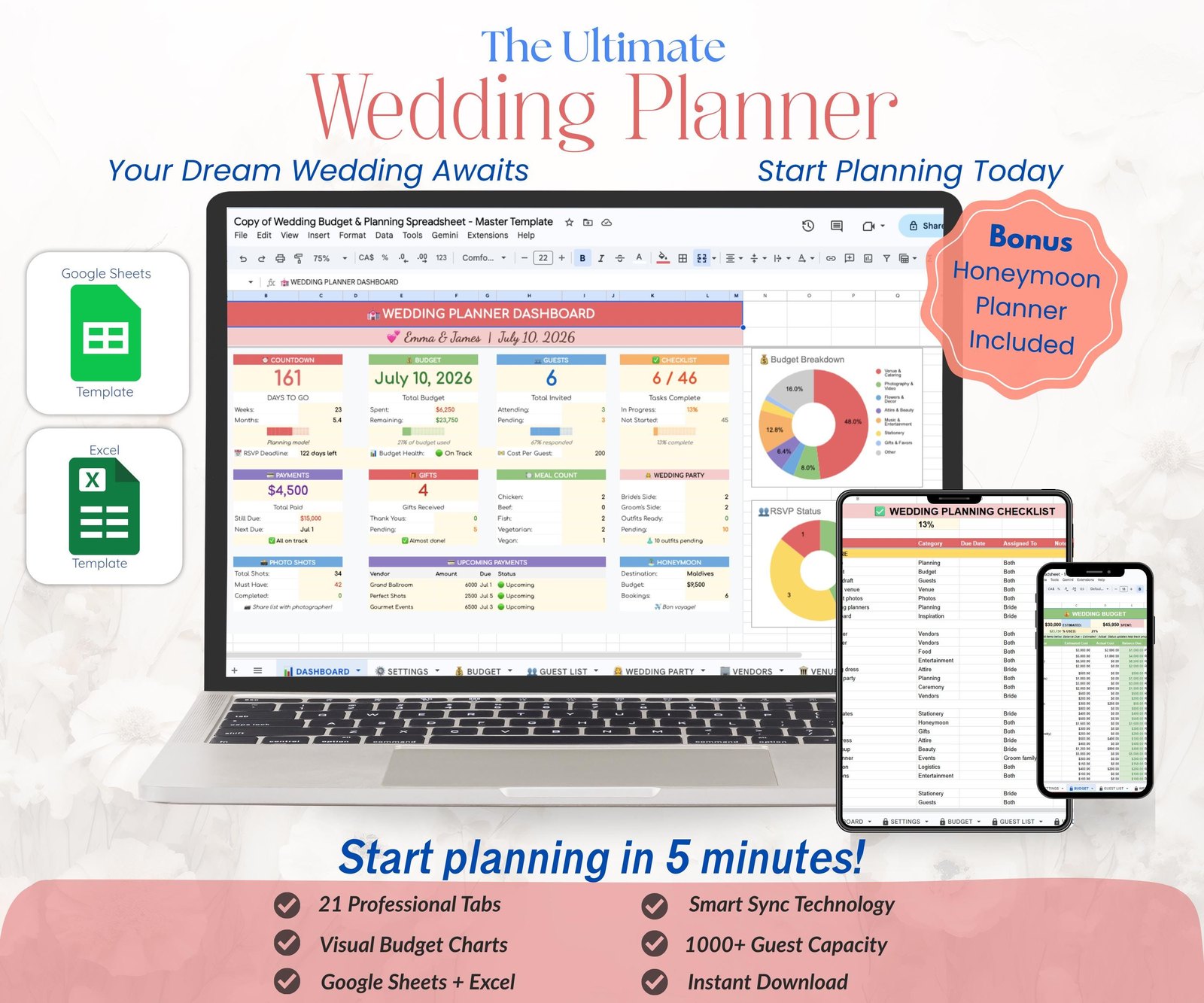
Wedding Planning Spreadsheet — 21 Tabs
The Columns Your Guest List Actually Needs
One row per person, not per invitation. A couple with two children is four rows. Caterers, table sizes and place cards all count people rather than envelopes, so a row per person is the format everything downstream expects.
- Name — as it should appear on a place card, so you are not guessing spellings at midnight.
- Group — bride’s family, groom’s work, university friends. This is what makes seating possible later.
- Invited to — ceremony, reception, evening only. Three columns of yes/no, not one.
- RSVP — yes, no, or blank. Blank means not answered, and blank is not the same as no.
- Meal choice — chicken, fish, vegetarian, child.
- Dietary notes — allergies in their own column, because a caterer needs them as a list.
- Table — the single column the seating chart is built from.
- Address — for invitations and thank-you cards, which are the same list twice.
Resist adding a “notes” column that becomes a dumping ground. If you need it twice, it deserves a column of its own.
Making the Seating Chart Read From the Guest List
This is the whole trick, and it is one formula.
Name the guest list tab GuestList, because the formulas below refer to it by name. Counting the columns above, Table is column I — name, group, three invitation columns, RSVP, meal choice, dietary notes, then table. On a second tab, make a block for each table. Under each, pull the names whose Table column matches that table number. In Google Sheets that is FILTER: =FILTER(GuestList!A:A, GuestList!I:I = 1) lists everyone assigned to table one, and it updates the moment you change someone’s table on the guest list. Excel does the same with its own FILTER in current versions, or an INDEX and SMALL combination in older ones.
Add a count beside each table — =COUNTIF(GuestList!I:I, 1) — and put your table capacity next to it. Now an over-full table is visible immediately rather than discovered by a venue coordinator on the day.
Two habits keep this working: never type a name directly onto the seating tab, and never delete a guest who declined. Mark them “no” and let the formulas ignore them, so you keep the record of who was asked.
The Numbers Worth Calculating Automatically
- Invited, replied, still waiting. The third number is the one you chase.
- Attending headcount, split by ceremony, reception and evening.
- Meal totals — how many chicken, how many vegetarian. Caterers ask for exactly this.
- Dietary list — every guest with a note, in one place.
- Seats assigned versus attending. When these match, seating is done.
- Children, counted separately, since caterers price them differently.
Every one of these is a COUNTIF over the guest list. Build them once and you never count anything by hand again.
The Wedding Budget Spreadsheet, in the Same File
Keep the budget in the same workbook, on its own tab, because most wedding costs are per head and the headcount lives next door.
Three columns beat ten: estimated, actual, and paid so far. Estimated is your plan, actual is what the supplier quoted, and paid so far is what has left your account. The gap between the last two is the number that matters in the final month, and it is the one a simple total hides.
Anything priced per person — catering, drinks, favours, stationery — should multiply your attending headcount rather than a figure you typed in January. When six guests decline, your budget should fall by itself.
Build It or Buy It
Everything above is genuinely buildable in an afternoon if you are comfortable with FILTER and COUNTIF. For a wedding of thirty people it may be all you need.
It stops being an afternoon once you want a dashboard, printable place cards, a timeline, a vendor payment tracker and a seating chart that fits on one printed page. Those are days of work rather than hours, and each one is a formula that has to be right.
Free: Wedding Guest List and RSVP Tracker
The guest list from this article with live RSVP counts, the seating chart that fills itself, and a per-head budget — plus a guide, and a code for 10% off at our printables and spreadsheets shop, shop.layer7designs.com.
Your 10% code for shop.layer7designs.com comes with it. One email when something new is ready — unsubscribe whenever you like.
Keep Reading
Frequently Asked Questions
Should the guest list have one row per person or per invitation?
Per person. Caterers count people, tables seat people, and place cards are written for people. Keep a household column if you want to group them for posting invitations, but let each guest have their own row and their own meal choice.
How do I make the seating chart update automatically?
Put a table number against each guest on the guest list, then use FILTER on the seating tab to pull names matching that table. Change someone’s table number and both views update together.
What do I do about guests who never reply?
Leave the RSVP cell blank rather than assuming, and keep a count of blanks on your dashboard. That number is your chase list. A week before the caterer’s deadline, ring the blanks rather than messaging again.
Google Sheets or Excel for wedding planning?
Google Sheets, mostly, because two people can edit it at once and it is on your phone when a supplier calls. Excel is fine if you prefer it, and FILTER works the same way in current versions. A template that includes both means you are not locked in.
Can one spreadsheet handle budget, guests and seating together?
It should. Per-head costs need the headcount, and the headcount comes from the RSVP column, so splitting them across files means retyping the same number in three places. One workbook with separate tabs is easier to keep honest than three separate documents.