Quick answer
Download the template file, open it in Canva, edit the text fields, preview the design, then download it as PDF Print or PNG. Six short steps, all covered below — nothing here needs a design background.
Keep a clean copyDuplicate the design in Canva before you start editing. If a change goes wrong you can then go back to an untouched version instead of rebuilding it.
You just purchased your Pokemon birthday invitation, and now you’re ready to make it yours. Maybe you’re wondering, “Can I really edit this on my phone?” or “What if I mess up the design?” Good news: customizing your editable Canva template takes less than 5 minutes, requires zero design skills, and works perfectly on mobile devices.
This step-by-step tutorial walks you through exactly how to customize your Pokemon invitation in Canva, from downloading your file to sharing the final result with guests. Whether you’re planning a small gathering or a full Gym Leader challenge, these instructions ensure your Pikachu party ideas start with a professional-looking invite.
Need more inspiration? Check out our complete guide to Pokemon birthday party ideas on a budget for decorations, food, and activity suggestions that pair perfectly with this invitation.
What You Need Before You Start
- A Free Canva Account: Sign up at Canva.com (works on phone, tablet, or computer)
- Your Downloaded PDF: The file you received after purchase contains the template link
- Party Details: Name, age, date, time, location, and RSVP info ready to type
- 5 Minutes: That’s all it takes to create a professional invitation
No software to install, no credit card required. The free version of Canva has everything you need to edit this digital download successfully.
Step 1: Download Your Template File
After purchasing, you’ll receive an email from Etsy with a download link. You can also access it anytime from your Etsy Purchases page.
- Go to your Etsy account → Purchases and Reviews
- Find your Pokemon invitation order
- Click Download Files
- Save the PDF to your device (phone or computer)
Pro Tip: If you’re on a phone, save the PDF to your Files app first. Then open it and tap the link. This prevents the link from getting lost in your email.
Step 2: Open the Template in Canva
- Open the PDF you just downloaded
- Click the button that says “Click here to edit in Canva”
- If prompted, sign in to your Canva account (or create a free one)
- Canva will automatically create a copy of the template in your account
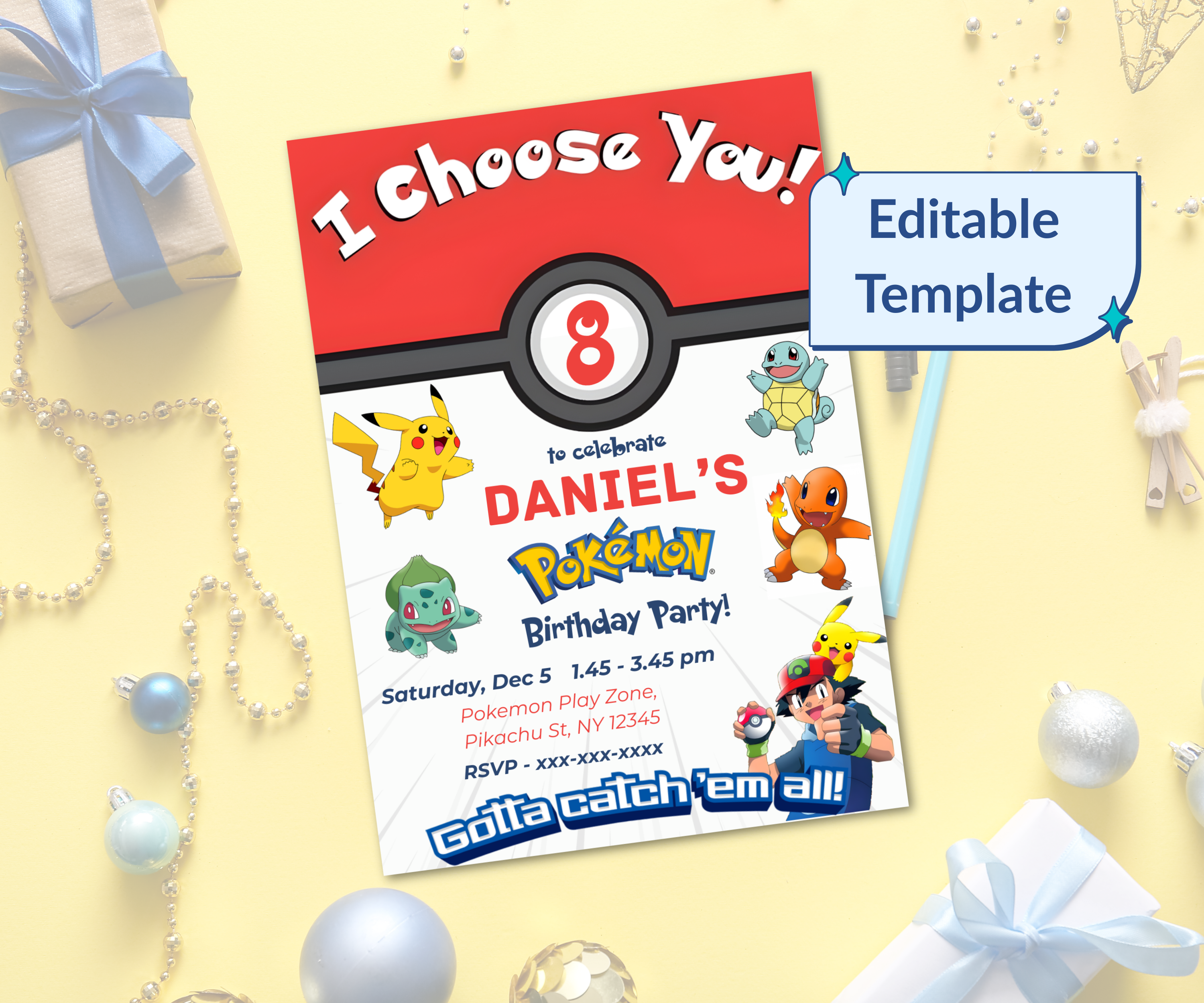
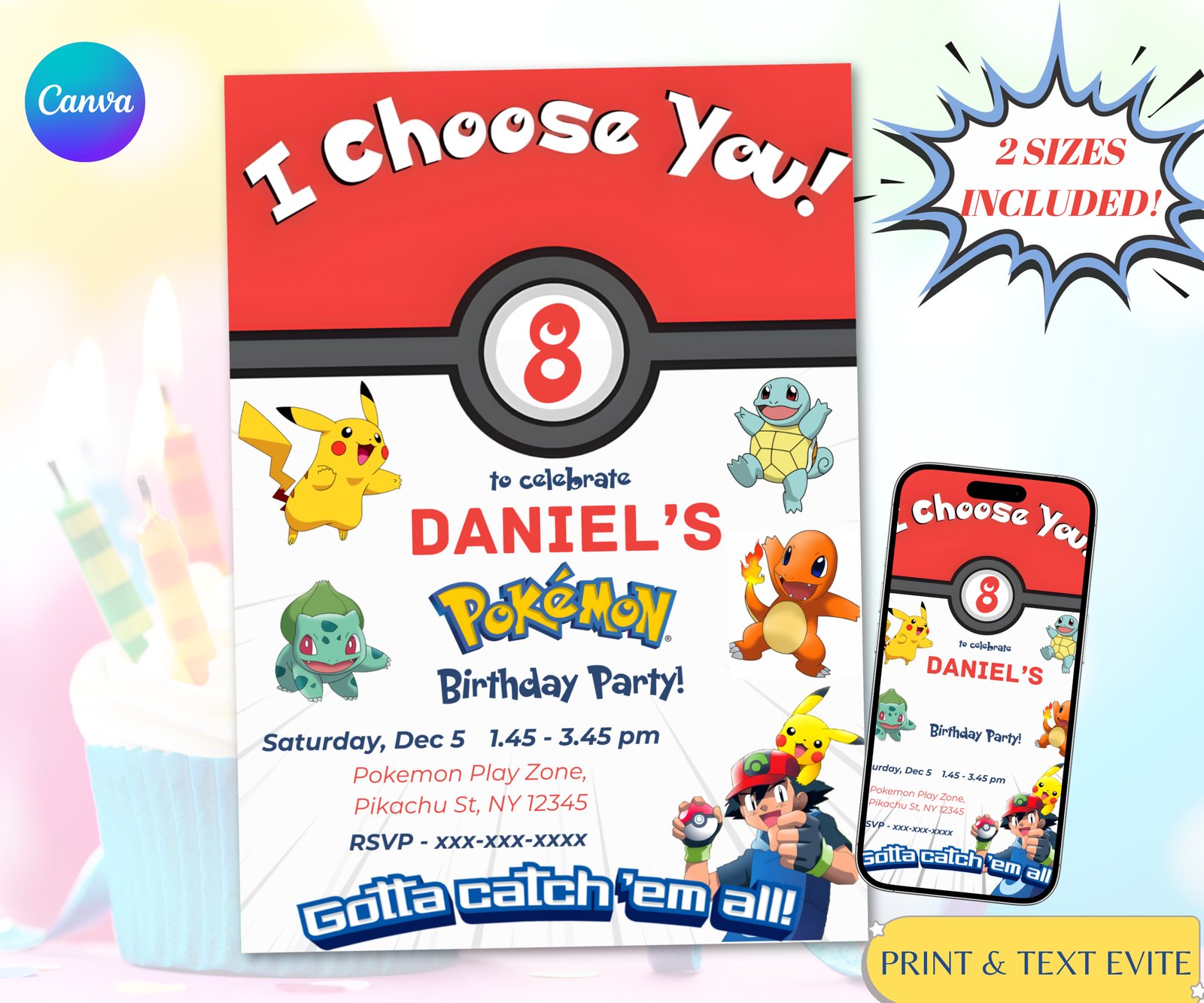
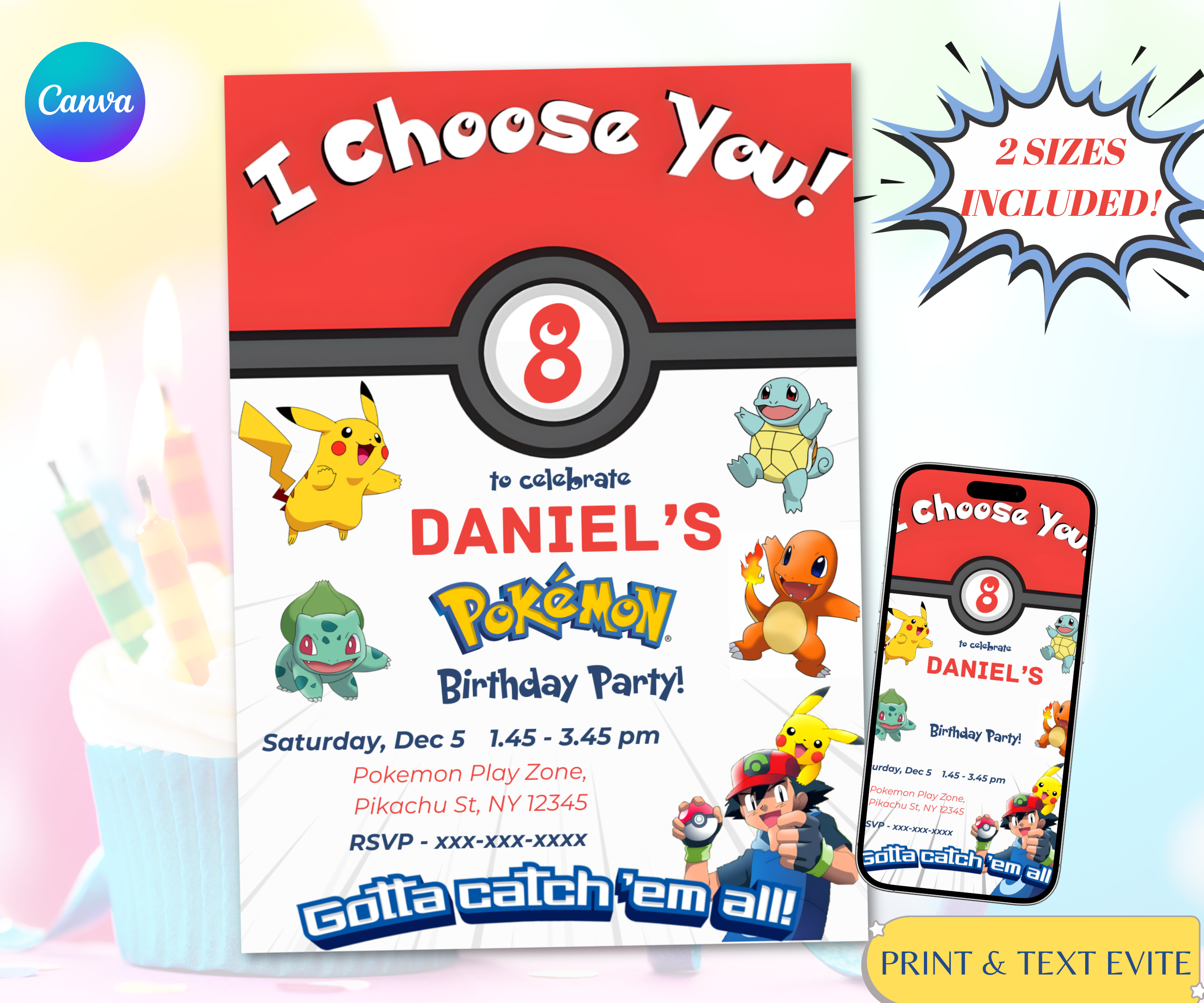
You’ll see the full invitation design with Pikachu, Charmander, Bulbasaur, and Squirtle. Don’t worry—you can’t accidentally break the design. The graphics are locked in place to preserve quality.
Step 3: Edit the Text Fields
This is where the magic happens. Every text box on the invitation is fully editable.
- Click on any text box (like “Trainer [Name]”)
- Type your child’s name (e.g., “Trainer Ash”)
- Update the age (change “Level 5” to “Level 7” for a 7th birthday)
- Add your party details: Date, time, location, and RSVP info
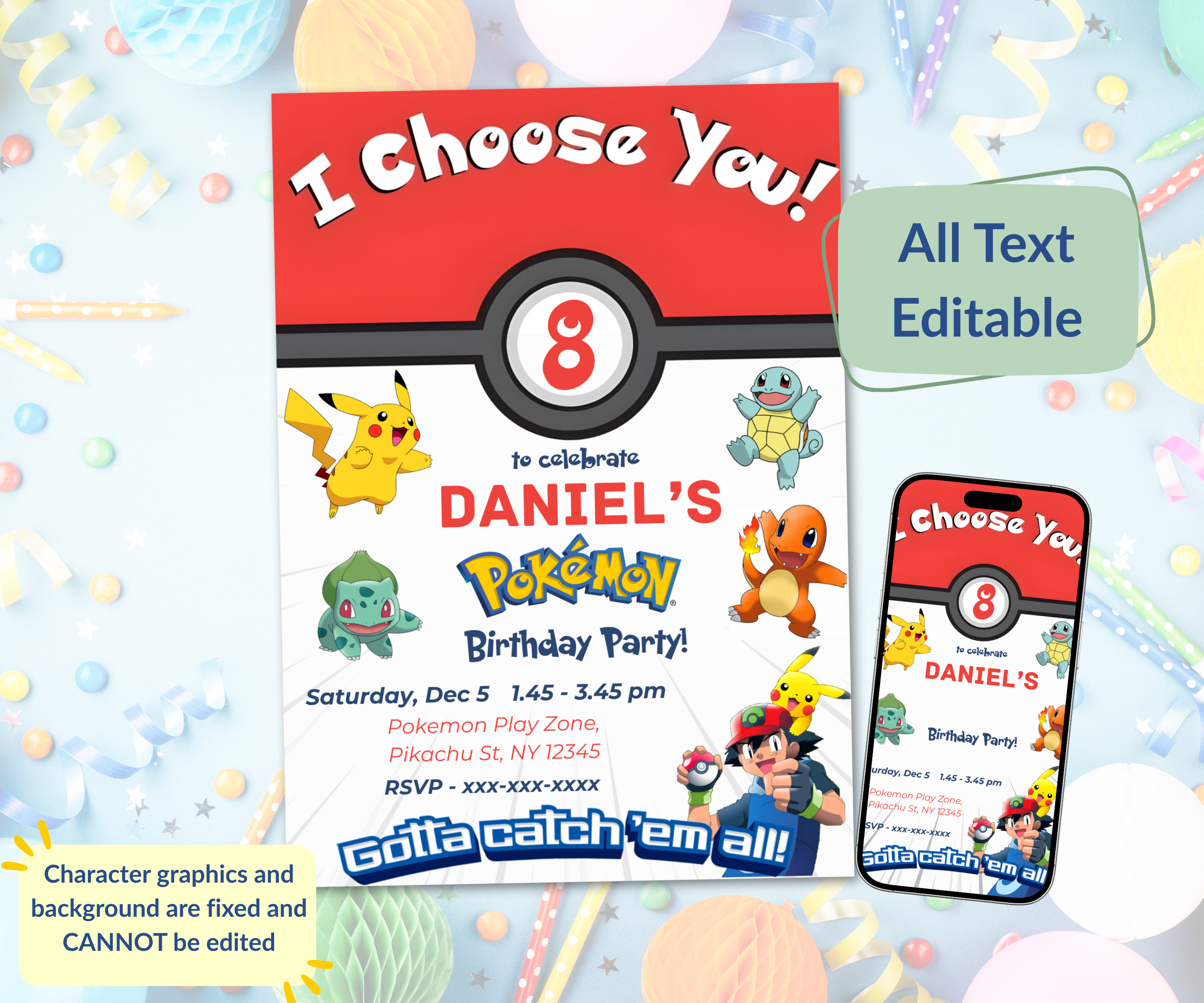
Want to change fonts or colors? Click the text, then use the toolbar at the top to select a different font or text color. The template uses free Canva fonts, so everything is available without upgrading.
Step 4: Preview Your Design
Before downloading, double-check your work:
- Spell-check all names and addresses
- Verify the date and time are correct
- Make sure your RSVP method is clear (text, call, or email)
- Zoom out to see the full design and ensure nothing looks crowded
Canva autosaves your work every few seconds, so you can step away and come back without losing progress. But a quick preview prevents embarrassing typos!
Step 5: Download Your Invitation
Ready to share? Here’s how to download your finished invitation:
- Click the Share button in the top-right corner
- Click Download
- Choose your file type:
- PDF Print: Best for professional printing (includes crop marks)
- JPG or PNG: Best for digital sharing via text or email
- Click Download again
Your invitation is now saved to your device! If you selected JPG, you can text it directly to guests. If you selected PDF, you can upload it to a print shop website or bring it to a local store.
You have two options for getting your invitation to guests:
Option A: Digital Sharing (Free & Instant)
- Text the JPG file directly to parents via iMessage or WhatsApp
- Email it as an attachment
- Post it to a private Facebook event page
- Share via Instagram Stories (tag guests in DMs)
Benefit: Zero printing costs, instant delivery, and eco-friendly. Perfect for last-minute parties!
Option B: Professional Printing
- Upload the PDF to Vistaprint, Staples, or Walgreens
- Print at home on cardstock (110lb or heavier recommended)
- Take the PDF file to a local print shop
Benefit: Tangible invitations feel more formal and exciting for kids. Plus, you can pair them with envelopes for a classic touch.
Instant Digital Download
Pikachu Pokemon Birthday Invitation
Tips for Editing Success
- Use a Computer for Easiest Editing: While mobile works, a laptop gives you more screen space to see details.
- Don’t Move the Graphics: The Pokemon characters are locked. Trying to move them will show an error. This protects the design quality!
- Save Multiple Versions: Want to try different colors? Click File → Make a Copy to create a backup before experimenting.
- Check Spelling Twice: Once you download, you can’t “undo” a typo. Preview carefully before finalizing.
Need more help? Our Kpop invitation editing guide follows the same process if you want to see another example of the Canva interface.
Complete Your Pokemon Party with Matching Activities
Your invitation is ready—now what? Keep the kids entertained with printable party games that match your theme’s energy. While we don’t have a Pokemon-specific activity sheet yet, our other themed placemats work perfectly for any party.
Sibling Favorite
Princess Activity Placemat
Printable placemats double as table decor and entertainment. Kids color, solve mazes, and complete word searches while waiting for cake. Learn more about using these in our guide to birthday party activity sheets.
Frequently Asked Questions
Can I edit this invitation on my phone?
Yes! The Pikachu Pokemon Birthday Invitation works on phones, tablets, and computers. Download the free Canva app, open your template link, and edit directly from your device. Many parents complete the entire process on their phones during lunch breaks!
What if I need to change the invitation next year?
You have lifetime access to the template. Log back into Canva anytime, find your design in the “Projects” folder, update the age and date, and download again. It’s a one-time purchase that saves money year after year.
Can I change the colors to match my party theme?
Absolutely! Click any text box, then use the color picker in the top toolbar to select a different text color. You can’t change the Pokemon character colors (they’re locked), but you can customize all text to match your Pikachu party ideas.
What size should I print the invitation?
The template is designed for 5×7 inches, the standard invitation size. This fits perfectly in A7 envelopes and works at any print shop. If you need a different size, you can resize it in Canva Pro or message us for assistance.
You’re Ready to Send Those Invitations!
Customizing your Pokemon birthday invitation doesn’t have to be stressful. With Canva’s user-friendly interface and this step-by-step guide, you’ll have a professional-looking invite ready in minutes. Your little trainer will be thrilled, and you’ll love how easy the process was.
Remember: this is just the start. Pair your invitation with our Pokemon party planning guide for decorations, food ideas, and budget-friendly tips to make the entire celebration legendary.
Got questions? Message us anytime—we typically respond within 24 hours. Now go catch those invitations (and all the fun that follows)!