
You just bought the Animated Mermaid Video Invitation and you’re ready to create something magical for your little mermaid’s party. But now you’re staring at your screen wondering: “How do I actually edit this video?”
Good news: You don’t need any video editing experience. This tutorial walks you through editing your mermaid video invitation in Canva — step by step, on your phone or computer. You’ll have your personalized video ready to send in under 5 minutes.
What this tutorial covers:
- How to access your Canva template link
- Editing text on mobile vs. desktop
- Exporting as MP4 for WhatsApp, text, or email
- Tips for best video quality
Let’s dive in and make your under the sea party invitation unforgettable.
What You Need Before Starting
Keep this checklist handy before you begin editing your mermaid birthday video:
- Free Canva account (sign up at Canva.com — takes 2 minutes)
- Your party details written down (name, age, date, time, address, RSVP info)
- Stable internet connection (video templates need to load)
- 5-10 minutes of uninterrupted time
Note: You can edit on your phone, tablet, or computer. Desktop/laptop is recommended for the easiest experience, but the mobile app works great too.
Planning more of your under the sea party? Check out our Under the Sea Birthday Party Ideas on a Budget for complete theme inspiration.
Step 1: Access Your Canva Template Link
After purchasing your animated mermaid invitation, you’ll receive a PDF file via email (check your Etsy purchases if you don’t see it).
What to do:
- Open the PDF file from your download
- Click the blue “Click here to edit in Canva” link
- Canva will open in your browser (or app if on mobile)
- Click “Use Template” if prompted
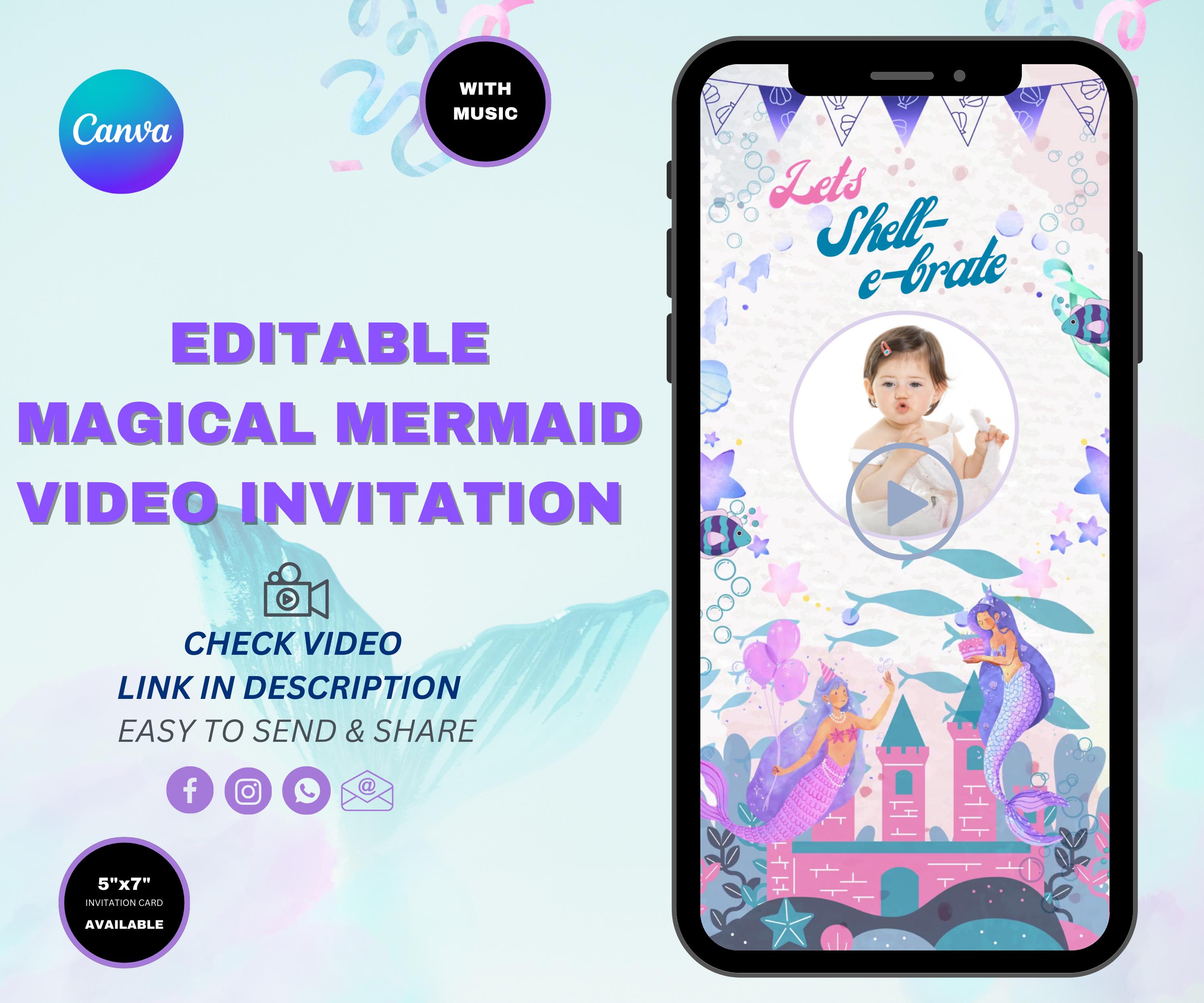
Your mermaid video invitation template will now load in the Canva editor. You’ll see the animated preview with pink, purple, and gold mermaid graphics.
Step 2: Edit the Text Fields
This is where you personalize your under the sea video invite. The template has pre-set text fields waiting for your party details.
On Desktop/Computer:
- Click on any text box (you’ll see a blue border appear)
- Delete the sample text
- Type your party information
- Click outside the box to save
On Mobile Phone:
- Tap the text box with your finger
- The keyboard will appear
- Delete sample text and type your details
- Tap “Done” on the keyboard
Text fields to edit:
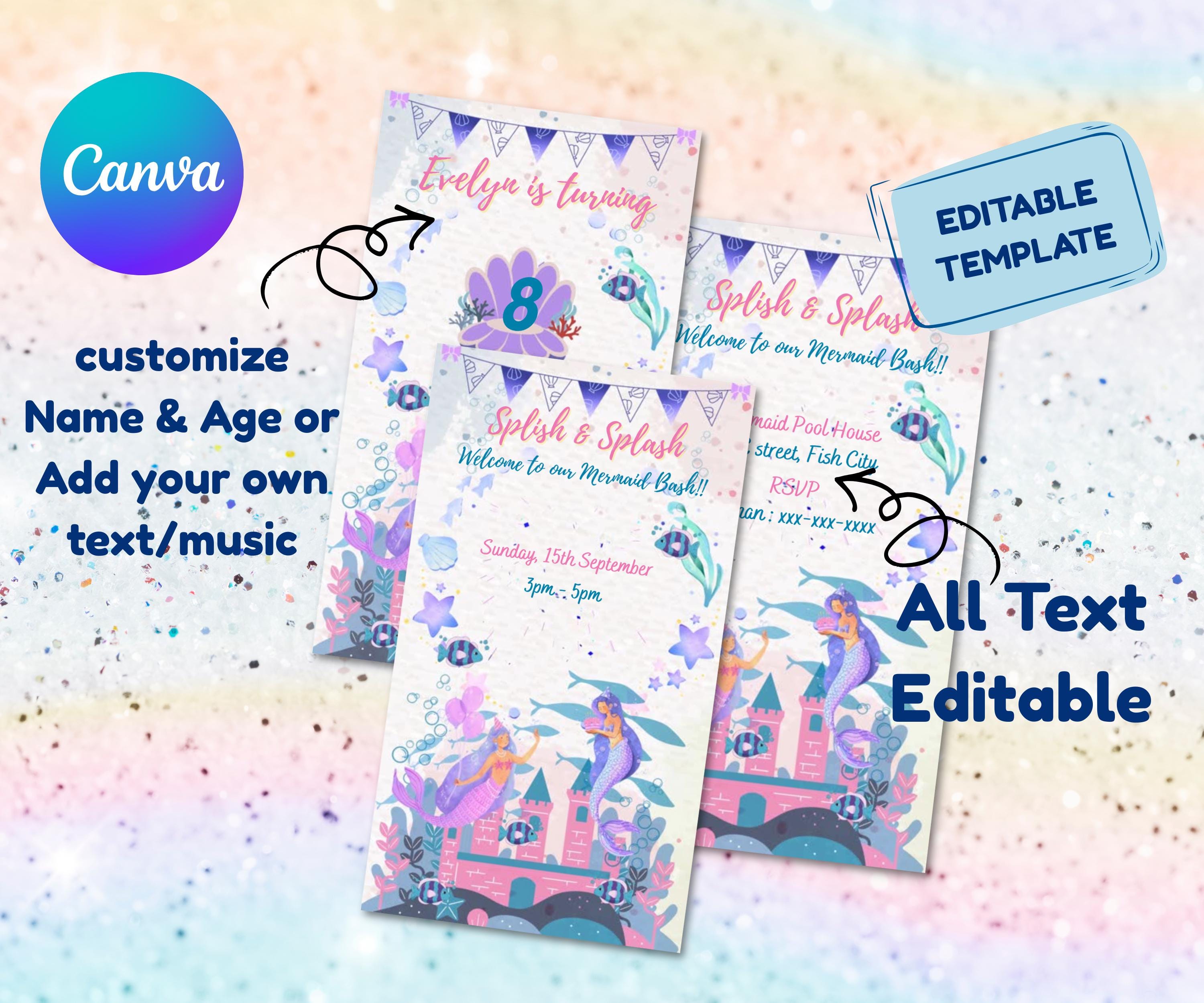
- Birthday child’s name (e.g., “Emma’s 5th Birthday”)
- Date and time
- Party location/address
- RSVP information (phone number or email)
Pro Tip: Keep text short and sweet. Video invitations are viewed on phones, so long paragraphs won’t display well. Stick to essential details only.
Step 3: Preview Your Video
Before exporting, always preview your mermaid party video invitation to catch any typos or formatting issues.
How to preview:
- Click the “Play” button (triangle icon) at the top of the editor
- Watch the full 20-second animation
- Check that all text is readable
- Verify spelling of name, date, and address
What to look for:
- Text doesn’t get cut off during animation
- Colors contrast well with the background
- Spelling is correct (especially the birthday child’s name!)
- RSVP info is complete
If you spot an error, just click the text box and fix it. The editable mermaid invitation saves automatically as you work.
Step 4: Export as MP4 Video
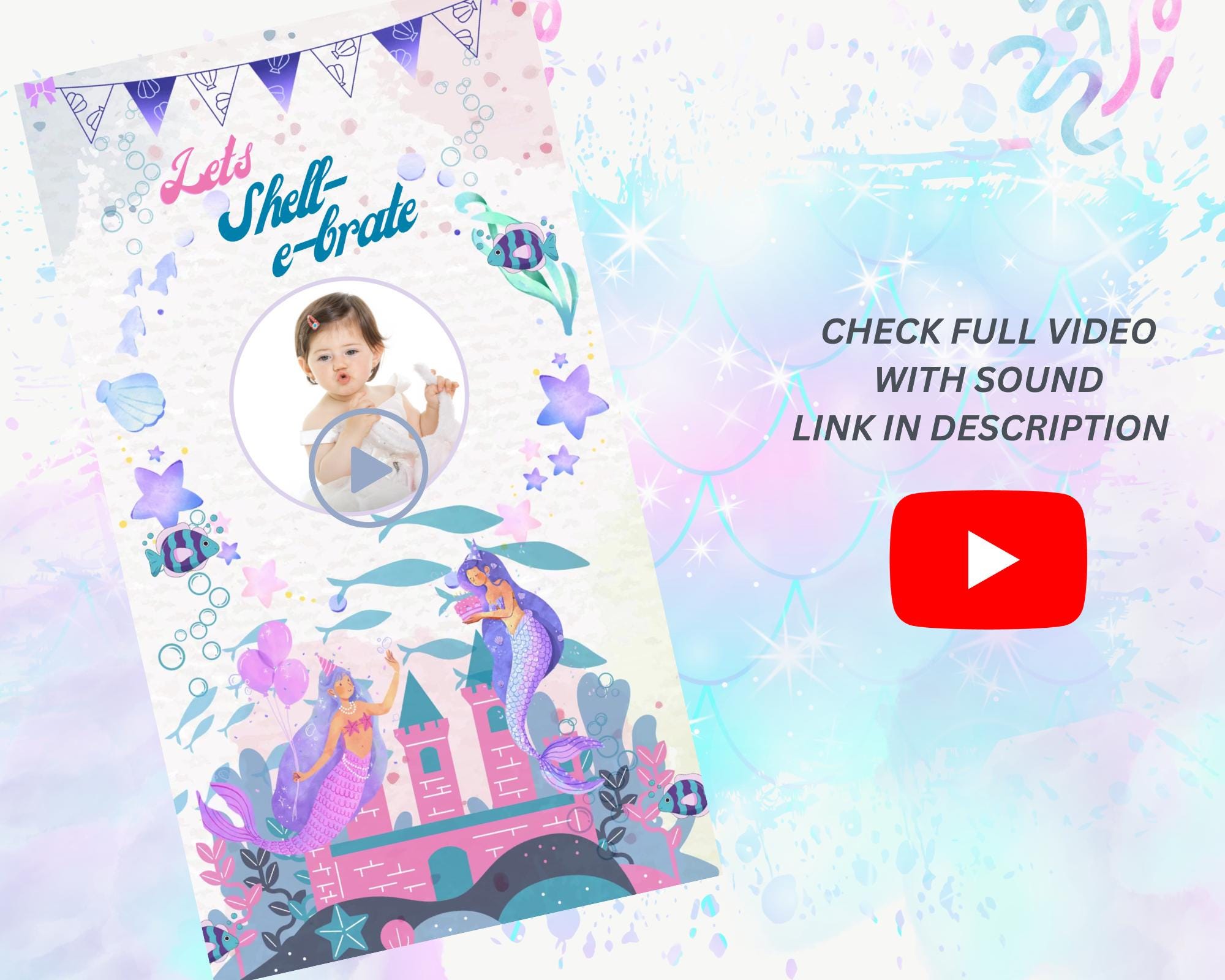
This is the final step! You’re ready to download your animated birthday video and send it to guests.
On Desktop:
- Click “Share” button (top right corner)
- Click “Download”
- Select “MP4 Video” from file type dropdown
- Choose “1080p” quality (best for phones)
- Click “Download” button
- Wait 30-60 seconds for rendering
- Video saves to your Downloads folder
On Mobile:
- Tap the Share icon (square with arrow)
- Tap “Download”
- Select “MP4 Video”
- Tap Download and wait for processing
- Video saves to your Camera Roll/Photos app
File size note: Your mermaid video file will be approximately 5-15 MB. This is small enough to send via WhatsApp, text message, or email without issues.
Step 5: Send to Your Guests
Your under the sea birthday invitation is ready to share! Here are the best ways to send it:
- WhatsApp: Attach video directly to chat or group
- iMessage/Text: Send as video attachment (not MMS photo)
- Email: Attach MP4 file (works best for small guest lists)
- Facebook Event: Upload as event cover video
- Instagram Story: Post as story with “Swipe Up” RSVP link
Pro Tip: Send a test video to yourself first! This confirms the file plays correctly on your phone before you send it to all 30+ guests.
Need matching mermaid party decorations? Browse our Mermaid Party Food Ideas Kids Love to complete your under the sea theme.
Tips for Best Results
Follow these Canva video editing tips to make your invitation look professional:
- Use short text: 3-5 words per line maximum
- High contrast colors: Dark text on light backgrounds (or vice versa)
- Test on multiple devices: Send to yourself and check on both iPhone and Android
- Download in 1080p: Never choose 720p — the quality difference is noticeable
- Keep original file: Don’t delete the Canva project in case you need to make changes later
Common mistakes to avoid:
- ❌ Typing paragraphs instead of short lines
- ❌ Using light text on light backgrounds (unreadable)
- ❌ Forgetting to include RSVP deadline
- ❌ Sending without testing first
- ❌ Exporting as GIF instead of MP4 (GIF has no sound and lower quality)
What Success Looks Like
You know your mermaid video invitation is ready when:
- ✅ All text is spelled correctly (especially names!)
- ✅ Video plays smoothly on your phone
- ✅ Text is readable without zooming in
- ✅ File size is under 20 MB (easy to send)
- ✅ Animation length is 15-25 seconds (not too long)
- ✅ You’ve sent a test to yourself first
If you can check all these boxes, you’re done! Time to send your animated mermaid invite and watch the RSVPs roll in.
Complete Your Mermaid Party
Love your video invitation? Match it with these coordinating under the sea party supplies from our shop:
Best Value ⭐ Most Popular
Animated Mermaid Birthday Video Invitation
Want to keep little mermaids busy at the party table? Add our coordinating activity placemat:
Instant Digital Download
Mermaid Activity Placemat
Instant Digital Download
Mermaid Birthday Invitation (Printable)
Why bundle? The video invitation is perfect for texting, while the printable invitation works great for grandparents or formal mail invitations. Use both for maximum reach!
Frequently Asked Questions
Can I edit this video invitation on my phone?
Yes! The mermaid video template works on both iPhone and Android through the free Canva app. However, desktop editing is easier for precise text placement. We recommend editing on computer if possible, then downloading to your phone for sending.
How long is the video invitation?
The animated mermaid video is approximately 20 seconds long. This is the sweet spot for video party invitations — long enough to show all details, short enough that guests will actually watch the whole thing.
Can I change the music in the video?
Yes! The template includes royalty-free mermaid theme music, but you can replace it. In Canva, click “Audio” in the left sidebar, delete the existing track, and search Canva’s free music library for a different song. Make sure it’s marked “Free” to avoid licensing issues.
What if I make a mistake after sending?
No problem! Your Canva project saves automatically. Just reopen the template, fix the error, re-export the MP4, and send the corrected version with a quick note like “Updated invitation with correct time!” Most guests won’t mind receiving two versions.
Can I print this video invitation?
No — this is a digital video invitation designed for texting and email. If you need printed invitations, purchase our matching Printable Mermaid Birthday Invitation instead. Many families use both: video for kids’ friends, printed cards for family members.
Does the video work on all phones?
Yes! MP4 is the universal video format. It plays on iPhones, Android phones, tablets, and computers. The file is optimized for mobile viewing at 1080 x 1920 pixels (vertical/portrait orientation), which fills the entire phone screen.
Ready to Send Your Mermaid Video Invitation?
You now have everything you need to create a stunning mermaid video invitation in Canva. Follow these steps, double-check your details, and you’ll have a professional-quality animated invite ready in minutes.
Your little mermaid deserves a magical party announcement. This under the sea video invite will have guests excited before they even arrive!
Need more help? Message us anytime through our shop. We respond within 24 hours and are happy to troubleshoot any editing issues.
Ready to complete your party planning? Check out these related guides:
- Under the Sea Birthday Party Ideas on a Budget
- Mermaid Party Food Ideas Kids Actually Eat
- Birthday Party Activity Sheets: 25 Ideas to Keep Kids Busy
Happy party planning! 🧜♀️✨

- How to Edit Mermaid Video Invitation in Canva (Step-by-Step) - April 7, 2026
- Mermaid Party Food Ideas Kids Actually Love (2026 Guide) - April 2, 2026
- Under the Sea Birthday Party Ideas on a Budget (2026 Guide) - April 2, 2026